
PPExec Documentation
Complete reference for PPExec - Parallel Processing Exec, version 1.0.0. Use the table of contents on the left to jump to any section. For licensing, installation help or bug reports, visit the support page or contact us.
Overview
PPExec runs a program on one or many Windows computers at once: either locally, on remote machines across the network, as another user, as Local System, or on a logged-on user’s desktop. It copies what the program needs to each target, checks each target against criteria you choose before copying/executing, streams the program’s output back (console output and return code), and records every run in a log folder of its own.
PPExec has two front-ends sharing one engine:
- PPExec GUI (
ppexec-gui.exe) - a windowed application for building, saving and running jobs interactively. - PPExec command line (
ppexec.exe) - for scripts, scheduled tasks and deployment tools.
Both run the same underlying code, understand the same filters and write identical log folders. Anything you can do in one you can almost always do in the other; where one has an option the other lacks, they will be highlighted in this document.
1 - Components
| File | What it is |
|---|---|
ppexec-gui.exe | The PPExec graphical front-end. |
ppexec.exe | The PPExec command-line front-end. |
ppexec-svc.exe | The 64-bit service host. PPExec copies it to each remote target and runs it there as a temporary Windows service; it confirms the validity of any filter, copies the required files, launches your program on the target and relays its output. |
ppexec-svc-x86.exe | The 32-bit service host, used only for runs restricted to 32-bit (x86)/legacy targets - see 32-bit targets. |
ppexec.pdf | This user guide. It can be opened via the GUI’s Help button. |
The service hosts must be located in the same folder as ppexec.exe and ppexec-gui.exe. PPExec looks for them in the same directory as whichever front-end is running.
2 - Installation
Run “PPExecSetup.exe” as an administrator. The installer:
- installs to “C:\Program Files\Emerita\PPExec” by default (you can choose another folder).
- adds a PPExec entry to the Start menu for launching the GUI.
- optionally adds a desktop shortcut (Create a desktop shortcut, which is off by default).
- optionally adds the installation folder to the system
PATH(Add PPExec to the system PATH, on by default), soppexeccan be typed in any new Command Prompt or PowerShell window. Console windows that were already open before installation will not see the change until they are reopened.
PPExec is a 64-bit program and installs on 64-bit Windows only. It can still run programs on 32-bit targets (see 32-bit targets).
To uninstall, use Settings › Apps (or Programs and Features). The uninstaller also removes the PATH entry if it added one. Your log folders under %LOCALAPPDATA%\Emerita\PPExec\Logs are left in place.
Nothing needs to be installed on the target computers. PPExec copies the relevant service host for the duration of each run and removes it afterwards.
3 - Requirements
On the computer running PPExec
- A 64-bit Microsoft supported edition of Windows.
- To run a program locally as Local System (
-s) or on the interactive desktop (-i), PPExec installs a temporary service on this computer, so it must be run as an administrator (an elevated prompt, or Run as administrator for the GUI). - A plain local run (no target computers, no
-s/-i) needs no special rights beyond those needed to start the program.
On each remote target
PPExec reaches a target using the same mechanisms Windows’ own remote administration tools do. Each target must allow:
- An administrator account. The account PPExec connects with - your currently logged-on account, or the one given with
-u/ the User field - must be a member of the target’s local Administrators group. - The admin share (
ADMIN$by default) - File and Printer Sharing must be enabled and reachable through the target’s firewall (SMB, TCP port 445). PPExec copies its service host, and ultimately your program, through it. - Remote service control - PPExec creates, starts, stops and deletes a temporary service through the target’s Service Control Manager.
- Named pipes over SMB - PPExec talks to its service and relays your program’s input and output over named pipes on the same connection.
TARGET\Administrator may fail with “access denied” while a domain administrator account works. Either use a domain account that is an administrator on the target, or have your administrator adjust the target’s UAC remote-restriction policy.32-bit (x86) targets
ppexec-svc.exe is a 64-bit program and cannot start on 32-bit Windows. In order to run on 32-bit targets, restrict the run to them with an Architecture = x86 (32-bit) filter (GUI Filter tab, or -filter "arch=x86"). PPExec then copies ppexec-svc-x86.exe instead.
Always target 32-bit and 64-bit runs separately.
4 - Licensing and registration
Editions
PPExec is licensed per edition. Each edition sets how much one run may do; if a run asks for more, PPExec reduces it to the edition’s limits, prints a notice saying what it changed, and carries on.
| Edition | Target computers per run | Concurrent sessions | Concurrent copies |
|---|---|---|---|
| Business Edition - Up to 100 devices for named company | up to 100 | up to 10 | up to 5 |
| Enterprise Edition - Unlimited devices for named company | Unlimited | up to 256 | up to 32 |
| Contractor Edition - Unlimited usage for named entity | Unlimited | up to 256 | up to 32 |
| Trial Version | Unlimited | up to 256 | up to 32 |
- A Business Edition run given more than 100 computers will run on the first 100 in the list and reports the rest as dropped, for example:
Business Edition limits one run to 100 targets; 140 requested, first 100 retained. - “Concurrent sessions” and “concurrent copies” are explained in Concurrency.
- On a Business Edition machine the GUI’s Concurrent sessions and Concurrent copies fields start at 10 and 5 (also their maximums) instead of the usual 32 and 10.
- Concurrent sessions and Concurrent copies may increase in future for Enterprise and Contractor editions.
Trial
An unregistered copy runs while its evaluation period is active. Each ppexec.exe run starts with the same banner a licensed copy shows, saying how much of the trial remains:
Licensed to   : Trial version
Remaining     : 28 days
In the GUI, the Settings tab’s Registration › Username field shows remaining trial days Trial version - 28 days remaining.
Once the trial has ended, runs are refused with exit code -14 until the software is registered.
Registering
Registration is per source/central console machine (target machines do not need registration), and is done from the GUI:
- Open PPExec GUI and go to the Settings tab.
- Click Register….
- Enter the Username and Serial number exactly as supplied with your license, and click OK.
On success the Registration section of the Settings tab shows the license. The same registration covers ppexec.exe on the machine.
| Message | Meaning |
|---|---|
| Registration successful. | The license is stored and active. |
| Registration failed. Please verify the Username and Serial Number are correct. | The username/serial pair was not accepted. Check both for typing errors; the username must match the license exactly. |
| Registration rejected: … | The key is genuine but is for an edition this version of PPExec does not recognise. It may be due to your support period expiring. Contact Emerita Codeworks for support or to purchase an upgrade. |
Seeing what a machine is licensed for
- GUI: the Settings tab’s Registration section shows Username, Serial (all but the last block masked, e.g.
XXXXX-XXXXX-KLMNO), Edition and Support until (e.g. 26 September 2026). The About… box shows the license holder and support expiry date. - Command line: every run begins with the license banner:
Licensed to   : Company Ltd (Enterprise Edition - Unlimited devices for named company)
Support until : 26 September 2027
License and integrity errors
Before every run PPExec verifies its license and its own digital signature. If either check fails, nothing is started anywhere.
| Exit code | Message includes | What to do |
|---|---|---|
| -14 | no paid license or verified trial is active | The trial has ended and no license is registered. Purchase a license. |
| -14 | the license does not cover this protected build | This version of PPExec was released after your support period ended. Renew support, or use a version released within your support window. |
| -14 | the trial-extension license has expired | Purchase a license. |
| -14 | license edition 0x…. is unknown to this build | Please contact Emerita Codeworks for support. |
| -14 | this executable has not been processed | The executable is not a genuine release build. Reinstall from the official installer. |
| -15 | … is not Authenticode-signed / signature is invalid or corrupted | ppexec.exe or ppexec-gui.exe has been modified or damaged. Please reinstall. |
5 - How a run works
Understanding the execution sequence should help improve your experience of using PPExec.
Where the program runs
| You give PPExec… | The program runs… |
|---|---|
| No target computers | Locally, started directly by PPExec (as you, or as the user given with -u). |
No target computers, plus Local System (-s) or Interactive (-i) | Locally, but through a temporary PPExec service on this computer, which supplies the Local System context those options need. Requires administrator rights. |
| One or more target computers | On each target, through a temporary PPExec service installed there. |
The steps for each remote target
- Signature checks (once per run, before anything else).
- Connect to the target’s admin share (
\\target\ADMIN$), using the supplied credentials if any. - Copy the service host (
ppexec-svc.exe) into the share, under a service name unique to this run (see Service names). For security reasons, PPExec first confirms the service host carries Emerita’s valid digital signature and refuses to send it otherwise. This is to reduce the security threat from running unauthorized patched versions of the product. - Install and start the service through the target’s Service Control Manager.
- Check the filter. The service evaluates your filter criteria on the target itself. A target that does not match is left alone and reported as Filtered - nothing else is copied to it.
- Copy your program and any additional files (only with Copy app to target /
-c). - Launch the program with the requested account, privileges, priority, working directory and so on.
- Stream its standard output and error back to PPExec until it exits or the timeout expires. With a single target the command line also sends your keyboard input (or anything piped or redirected into
ppexec) to the program, soppexec \\server cmd.exegives you a working remote command prompt - see Interactive sessions. With several targets, programs receive no input, so run them with options that do not prompt - silent/unattended switches for installers, for example. - Clean up: files copied during this run are deleted (unless you asked to keep them), the service is stopped and deleted, and the service host file is removed.
Serial and parallel runs
- Serial: one target at a time, in list order. This is the default for the command-line version, PPExec.exe (for PSExec/PAExec compatibility); each target’s output is printed as it arrives.
- Parallel: up to N targets at once (
-par N, or the GUI’s Concurrent sessions). The GUI runs in parallel by default (32 concurrent sessions, up to a maximum of 256). Using the command line PPExec.exe, a parallel run shows a live progress display instead of output, and each target’s output goes to its own log file.
Concurrency
Two separate limits apply to a parallel run:
| Limit | GUI field | Command line | Default | Controls |
|---|---|---|---|---|
| Concurrent sessions | Concurrent sessions (parallel executions) | -par n | GUI: 32 for Enterprise/Contractor edition (maximum 256). 10 for Business edition (maximum 10). Command line: serial (1) unless -par is given. | How many targets are being worked on at once. |
| Concurrent copies | Concurrent copies (parallel file copies) | -parcopy n | 10 for Enterprise/Contractor edition (maximum 32). 5 for Business edition (maximum 5). | How many of those targets may be copying files at the same moment (1–32). |
Every remote target receives at least the service host, and with Copy app to target also your program and additional files. Without the copy limit, a wide run would start that many transfers through one network interface at once. With the defaults, up to 32 targets are in progress but at most 10 are copying; the others carry on connecting, launching and waiting meanwhile. The copy limit covers every copy the process makes, across all targets.
Both limits are subject to the edition caps in Licensing.
Where copied files go on the target
With Copy app to target (-c), the program is copied:
- to the same path it has on this computer, if that file already exists on the target at that path (it is then only replaced if Force copy /
-for-vsays so); otherwise - into the target’s Windows folder (
%SystemRoot%).
Additional files (-add / Additional Files) are placed beside the program on the target; a folder is copied with its contents and subfolders, under a folder of the same name.
Clean-up
After the program exits, PPExec deletes every file this run put on the target, and any folders that were created only to hold them. It never deletes a file that was already there, even if -f or -v replaced it. Files are left in place when:
-cnodelis given (command line only), or- the run did not wait for the program (Don’t wait for exit /
-d) - the program is still running and may need them.
The service itself is always stopped and removed.
Service names
By default each target’s temporary service is named PPExec-<process id>-<this computer's name>-<random token>, so several runs, from one or many computers, can work on the same target at the same time without interfering. The command line can override this:
-sname name- use exactly this service name (andname.exefor the file).-noname- use the fixed namePPExec.
A fixed name means two runs on the same target at the same time will collide; use it only when you need a predictable name, for example so a script can clean up after an interrupted run.
6 - Using the GUI
Start PPExec from the Start menu or run ppexec-gui.exe. The window has a banner and five tabs:
| Tab | Purpose |
|---|---|
| Operation | What to run, and as whom. Run, Cancel, Open/Save, Logs, Help, About. |
| Computers | Which computers to run it on. Empty = this computer. |
| Filter | Which of those computers qualify. |
| Settings | How to run it: account options, priority, concurrency, copying, paths, and this machine’s registration. |
| Execute | Appears when you click Run: progress and output for each computer. |
Whilst the window always starts at the default size, it can be resized and maximised.
6.1 - The Operation tab
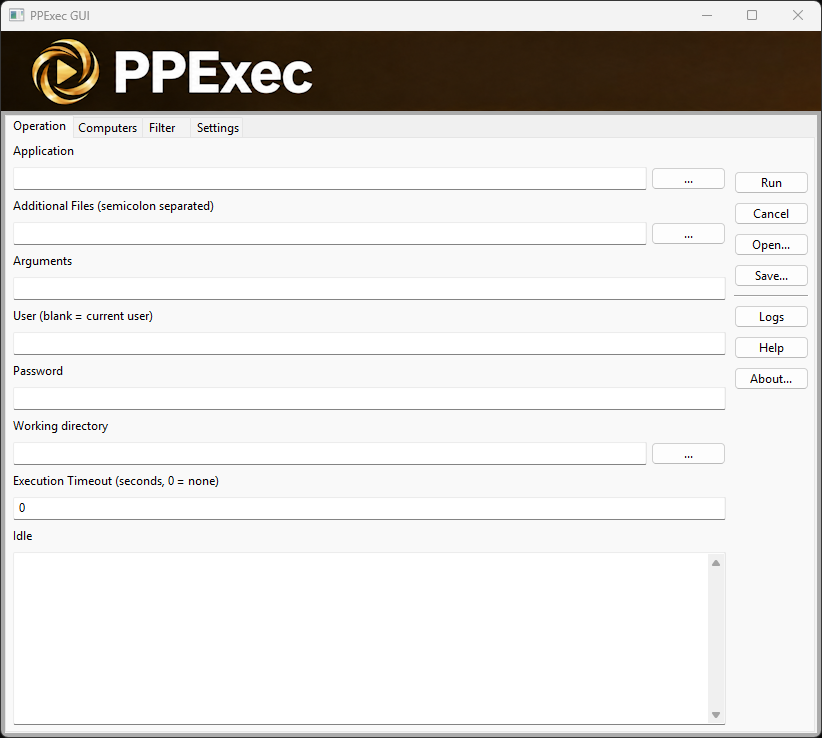
| Field | Meaning | Command-line equivalent |
|---|---|---|
| Application | The program to run. Click … to pick an .exe on this computer. For a remote run without copying, this is a path on the target (or a name on its PATH); the picker browses this computer, so type the path if it only exists on the targets. | <app> |
| Additional Files (semicolon separated) | Extra files or folders to copy to each target beside the program, e.g. C:\Payload\data.dat; D:\Lib\helper.dll. … picks one or more files (it replaces the field’s contents; type to combine files from different folders). Naming any files here turns on copying automatically. Every entry must exist on this computer. | -c -add "a;b" |
| Arguments | Command-line arguments for the program. | [args] |
| User (blank = current user) | Account to run as: DOMAIN\user, user@domain or user. Also used to connect to remote targets. | -u |
| Password | Password for User. Required if a user is given. Never saved to a file. | -p |
| Working directory | Folder the program starts in. … picks a folder on this computer; for remote runs type a path that exists on the targets. | -w |
| Execution Timeout (seconds, 0 = none) | Terminate the program if it is still running after this many seconds. Its exit code is then -10. | -to |
Below the fields:
- Status line - the current phase (Idle, connecting, copying, installing, launching, waiting, done).
- Output box - the run’s own output: where it is being logged, the license banner, any edition-limit notice, run-level messages, the closing run summary, and - for a local run - the program’s output. Each remote computer’s own output is on the Execute tab.
The button column:
| Button | Action |
|---|---|
| Run | Checks the form (see What Run checks), then starts the run and switches to the Execute tab. |
| Cancel | Stops the run in progress. A local program is terminated; computers not yet started are marked Cancelled and are not touched; the run reports Cancelled (exit code -11). |
| Open… | Loads a saved job (.ppe) into the Operation, Settings and Filter tabs, replacing what is there. See .ppe files. |
| Save… | Saves the Operation, Settings and Filter tabs to a .ppe file. The password is not saved; the computer list is saved separately on the Computers tab. |
| Logs | Opens the log root folder, %LOCALAPPDATA%\Emerita\PPExec\Logs, in Explorer. |
| Help | Opens this guide (ppexec.pdf in the installation folder). |
| About… | Version, copyright and what this machine is registered to. |
Closing the window during a run cancels the run safely (though is not recommended); everything logged up to that point is kept.
6.2 - The Computers tab
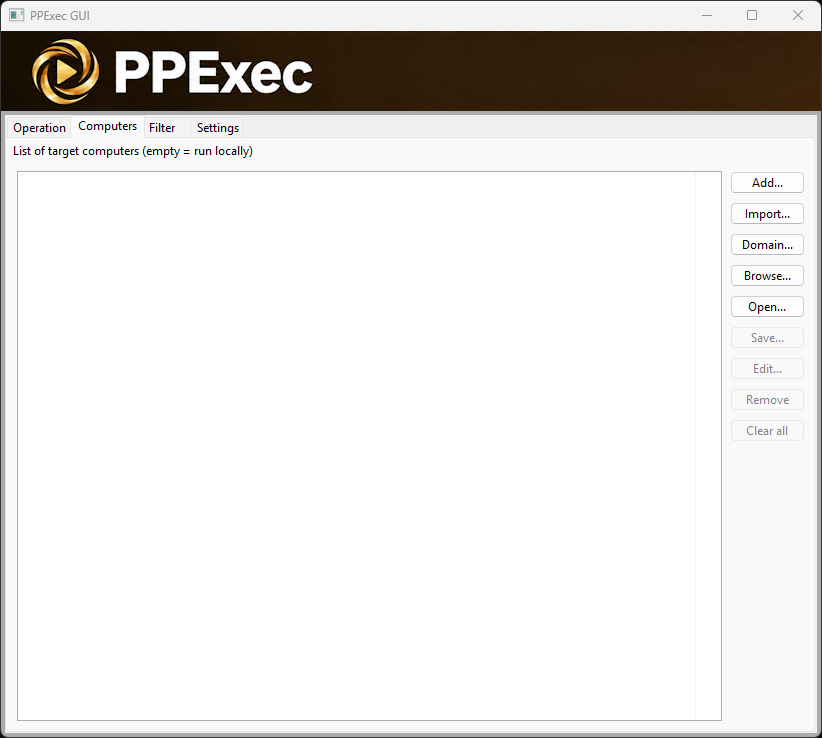
The list of target computers - empty means run on this computer.
| Button | Action |
|---|---|
| Add… | Type one or more names, separated by commas. A leading \\ is optional. |
| Import… | Adds the names from a text file (one per line, or comma-separated) to the list. |
| Domain… | Lists every enabled computer account in Active Directory for this computer’s domain, and lets you choose from them. Fully-qualified DNS names are used where available. Not available on a computer that is not in a domain. |
| Browse… | Finds computers that are switched on and answering on the network right now, and lets you choose from them (see below). |
| Open… | Loads a saved list, replacing the current list (asks first if that would discard one). |
| Save… | Saves the list to a text file, one name per line. |
| Edit… | Renames the one selected computer. |
| Remove | Removes the selected computers (Ctrl-click and Shift-click select several). |
| Clear all | Empties the list. |
Names are trimmed, a leading \\ is removed, and duplicates are ignored (case-insensitively), whichever button added them. Import adds to the list; Open replaces it.
The Domain… and Browse… pickers both have Select all / Select none and a running “n of m selected” count. If the domain holds more computers than one directory query may return (normally 1,000), the picker says so prominently rather than presenting a partial list as complete.
How Browse finds computers. Browse first asks the network’s browser service for its computer list. On most modern networks that service is disabled and returns nothing, so Browse then sweeps this computer’s own subnet (the 254 addresses around its IPv4 address) for machines answering NetBIOS name queries. The picker tells you when the sweep was used. The sweep only finds computers that are on, on this subnet, and have NetBIOS over TCP/IP enabled - use Domain…, Add… or Import… for anything else.
6.3 - The Filter tab
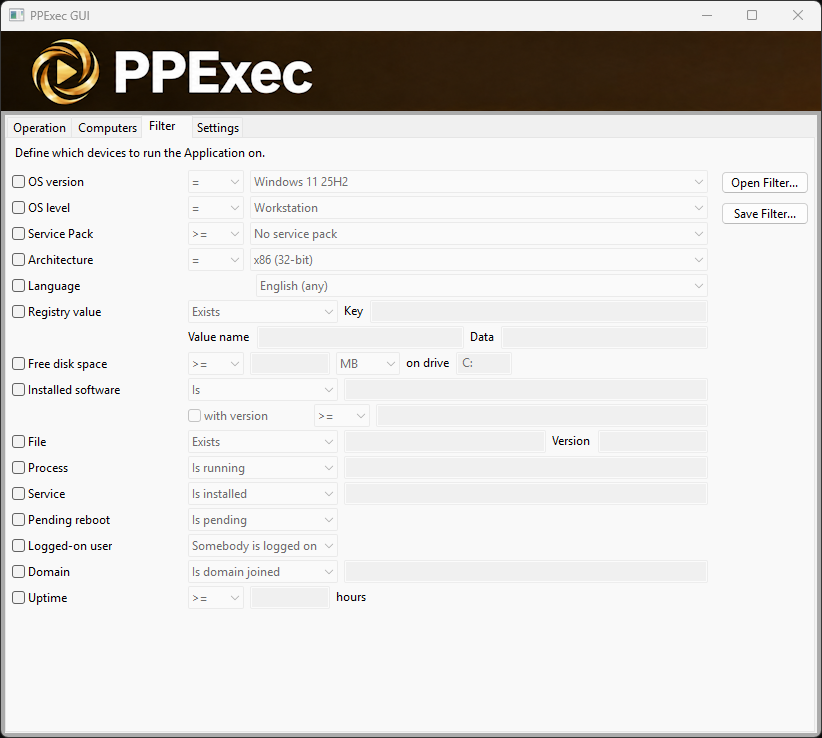
“Define which devices to run the Application on.” Tick a row to use it; a run proceeds on a computer only if it meets every ticked row. With nothing ticked, every computer qualifies.
| Row | Fields |
|---|---|
| OS version | comparison, Windows release |
| OS level | comparison, Workstation / Server |
| Service Pack | comparison, service pack |
| Architecture | comparison, x86 (32-bit) / x64 (64-bit) / ARM64 |
| Language | Windows installation language |
| Registry value | operation; Key; Value name (blank = the key itself); Data |
| Free disk space | comparison, amount, MB/GB, on drive |
| Installed software | Is / Is not / Contains / Doesn’t contain, product name; optionally with version and a comparison |
| File | operation, path; Version |
| Process | Is running / Is not running, process name |
| Service | Is installed / Is not installed / Is running / Is stopped / Is disabled, service name |
| Pending reboot | Is pending / Is not pending |
| Logged-on user | Somebody is logged on / Nobody is logged on |
| Domain | Is domain joined / Is not domain joined / Domain is / Domain is not, domain name |
| Uptime | comparison, hours |
What each criterion means is described in full in Target filters.
The Open Filter… and Save Filter… buttons read and write a .flt file (see .flt files), the same format the command line’s -loadfilter reads - so a filter built here can be used in scripts unchanged. Open Filter… replaces the whole tab. If the file names an OS version, language or service pack that is not in this tab’s lists (the text format accepts any build number, for example), that row is left unticked and a message tells you; run such a filter with ppexec.exe -loadfilter to use it exactly as written.
6.4 - The Settings tab
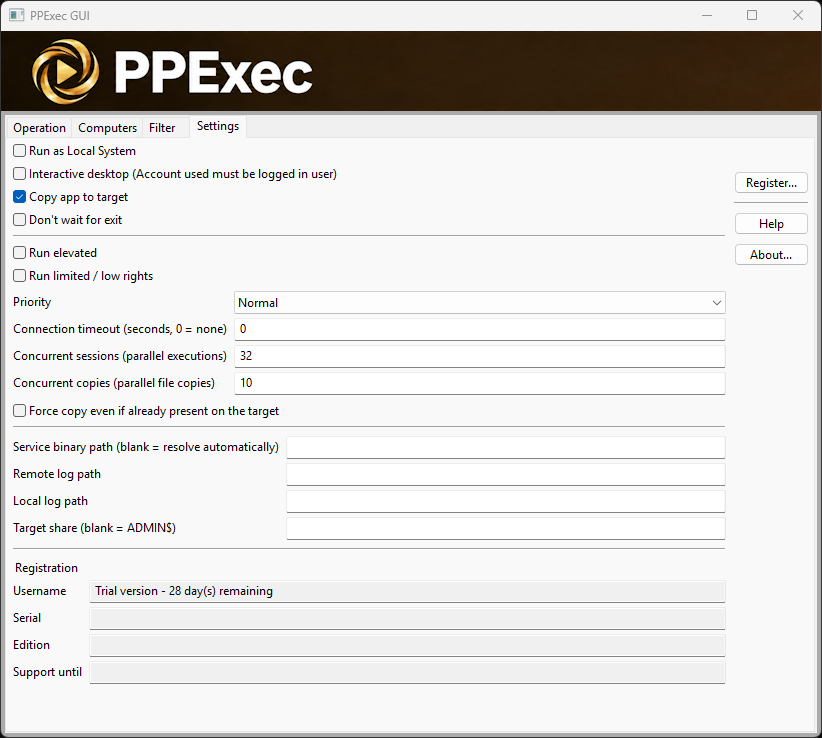
Run options
| Setting | Meaning | Command line |
|---|---|---|
| Run as Local System | Run the program as the Local System account. | -s |
| Interactive desktop (Account used must be logged in user) | Show the program on the desktop of the active logged-on session. Output is not captured in this mode. | -i |
| Copy app to target | Copy Application (and Additional Files) to each target before running it. | -c |
| Don’t wait for exit | Start the program and move on without waiting for it to finish. | -d |
| Run elevated | Run with the account’s full administrator token. | -h |
| Run limited / low rights | Run with a limited token. Ticking this clears Run elevated, and vice versa. | -l |
| Priority | Idle (lowest), Below normal, Normal (default), Above normal, High, Realtime (use with caution). | -low … -realtime |
| Connection timeout (seconds, 0 = none) | Give up connecting to a target after this many seconds. | -n |
| Concurrent sessions (parallel executions) | How many computers to work on at once. Default 32 (10 on Business Edition). Max 256 on Enterprise/Contractor edition. 1 = one at a time; blank = 1. | -par |
| Concurrent copies (parallel file copies) | How many computers may be copying files at once, 1–32. Default 10 (5 on Business Edition); blank = 10. | -parcopy |
| Force copy even if already present on the target | With Copy app to target, always overwrite the program on the target. | -f |
Run elevated and Run limited are ignored when Run as Local System is ticked - Local System is its own account.
Paths
| Setting | Meaning | Command line |
|---|---|---|
| Service binary path (blank = resolve automatically) | Use a specific service host executable instead of the ppexec-svc.exe installed beside PPExec. Normally left blank. | -svcexe |
| Remote log path | A file on each target where the PPExec service writes its own diagnostic log. | -rlo |
| Local log path | An additional log file on this computer (the run’s log folder is always written regardless). | -lo |
| Target share (blank = ADMIN$) | The admin share used to copy files to targets. | -share |
Registration (read-only): Username, Serial, Edition and Support until for this machine’s license, plus the Register… button (see Registering).
Settings take effect when Run is pressed. They are kept for the rest of the session and can be saved with the Operation tab’s Save….
6.5 - What Run checks
Before starting, Run checks the form and lists every problem at once, then takes you to the first field that needs attention. Nothing is started until all of them are fixed:
- Application is filled in.
- If Password is filled in, User is too.
- Execution Timeout is a whole number (or blank).
- Every Additional Files entry exists on this computer.
- Run elevated and Run limited are not both ticked.
- Connection timeout is blank or a whole number; Concurrent sessions is blank or a whole number of 1 or more; Concurrent copies is blank or a whole number from 1 to 32.
- Every ticked Filter row has what it needs (a registry key, a drive and size, a product name, a file path, a process or service name, a domain name where the operation names one, a whole number of hours, and a value wherever the chosen comparison needs one).
An empty computer list is not a problem - it means “run on this computer”.
6.6 - The Execute tab
Clicking Run adds the Execute tab and switches to it. It stays for the rest of the session, so the last run can still be read after it finishes.
Computers in this run lists every computer from the start, with:
| Column | Shows |
|---|---|
| Computer | The target’s name. |
| Status | Pending, then Running: <what it is doing> (e.g. copying files, waiting for exit), then the outcome. |
| Exit | The exit code (see Exit codes). |
| Time | How long that computer took, e.g. 3m 04.6s. |
| Outcome | Row colour | Meaning |
|---|---|---|
| Running | yellow | In progress. |
| Successful | green | Finished with exit code 0. |
| Failed | red | Finished with any other exit code - a PPExec error, or the program itself returning non-zero. |
| Filtered | uncoloured | Did not meet the filter; nothing was run on it. Not counted as a failure in the summary. |
| Cancelled | uncoloured | The run was cancelled before this computer’s turn; nothing was attempted. |
Log for the selected computer shows that computer’s messages and program output. Until you click a row, the view follows the run (the first computer to start, then the next as each finishes); click any row to read its log.
The GUI shows a program’s output but does not send it keyboard input: a program that waits for input waits until it times out. For an interactive session with a single computer (a remote command prompt, for example), use ppexec.exe - see Interactive sessions.
7 - Using the command line
7.1 - Syntax
ppexec [\\computer[,computer2,...] | \\* | @file] [options] <app> [app arguments]- Targets come first, if any:
\\nameor\\name1,name2,name3- a comma-separated list (no spaces).@file- read computer names from a text file, one per line.\\*- every server the domain’s browser service reports (often empty on modern networks; prefer@file).- Nothing - run on this computer.
- Options come next. Each starts with
-,--or/, and names are not case-sensitive (-filter,--filterand/FILTERare the same). If an option is given twice, the first one counts. - The program is the first word that is not an option. Everything after it is passed to the program as its arguments, so PPExec options must come before the program name. Quote the program path if it contains spaces.
The same computer may not be listed twice in one run (names are compared case-insensitively).
Running ppexec with no arguments, or ppexec -?, prints the built-in usage summary.
7.2 - Option reference
Credentials
| Option | Meaning |
|---|---|
-u user | Run as, and connect to targets as, this account: DOMAIN\user, user@domain, or user. Without -u, your own logged-on credentials are used. |
-p password | Password for -u. May be empty (-p ""). If -u is given without any password option, PPExec prompts for it. |
-p@ file | Read the password from the first non-empty line of file. |
-p@d | With -p@: delete the password file after reading it. |
-e | Don’t load the account’s user profile. |
Account and privileges
| Option | Meaning |
|---|---|
-s | Run as Local System. May be combined with -u (connect as -u, run as Local System). |
-h | Run with the account’s elevated (full administrator) token. |
-l | Run with a limited (low-rights) token. |
-x | Show the program’s UI on the Windows logon desktop. Requires -s. |
-i [session] | Run on an interactive desktop: the given session number, or the active console session if omitted. Output is not captured in interactive mode. |
-h, -l and -s cannot be combined with each other (except that -s overrides -h).
Execution
| Option | Meaning |
|---|---|
-w dir | Working directory for the program (a path on the machine where it runs). |
-d | Don’t wait for the program to finish. On a remote target the log shows its process ID and the target’s result is 0. Cannot be combined with -to. |
-to seconds | Terminate the program if it is still running after this many seconds; its exit code is then -10. |
-dfr | Disable WOW64 file-system redirection for the program (lets a 32-bit program see the real System32). |
-a n,n,... | Restrict the program to the listed processor numbers. |
Priority
The last one given wins.
| Option | Priority |
|---|---|
-low or -background | Idle (lowest) |
-belownormal | Below normal |
-normal | Normal (default) |
-abovenormal | Above normal |
-high | High |
-realtime | Realtime - use with caution; can starve the system |
Parallel runs
| Option | Meaning |
|---|---|
-par n | Run on up to n computers at once, with a live progress display. Requires a computer list. |
-parcopy n | Copy files to at most n computers at once (1–32, default 10). Requires a computer list. |
Copying files to the target
| Option | Meaning |
|---|---|
-c | Copy the program to each target before running it. Without -c the program must already exist on the target (by full path, or on its PATH). |
-f | With -c: always copy, even if the file already exists on the target. |
-v | With -c: copy only if this computer’s file is newer or has a higher version than the target’s. |
-cnodel | With -c: leave copied files on the target after the run. |
-csrc path | With -c: copy path from this computer and run it on the target under the name given as <app>. |
-clist file | With -c: copy the files named in file (one per line, relative to the list file’s own folder). The first file listed is the program that is run; the rest are copied beside it. Cannot be combined with -csrc. |
-add "a;b;c" | With -c: also copy these files or folders (full paths on this computer, separated by semicolons) beside the program. A folder is copied with all its contents under a folder of the same name. |
Target filter
| Option | Meaning |
|---|---|
-filter "criteria" | Only run on computers meeting every criterion. See Target filters. |
-loadfilter file | Read the criteria from a .flt file. Cannot be combined with -filter. |
Remote connection and service
| Option | Meaning |
|---|---|
-n seconds | Connection timeout for reaching each target. Requires a computer list; must not be 0. |
-share name | Admin share to copy through (default ADMIN$). |
-sharepath path | With -share: the local folder on the target that the share points to (default %SYSTEMROOT%, which is where ADMIN$ points). Needed only when using a share other than ADMIN$. |
-svcexe path | Service host executable to copy to targets. Default: ppexec-svc.exe beside ppexec.exe, otherwise ppexec.exe itself. |
-sname name | Use this exact service name on the targets. |
-noname | Use the fixed service name PPExec. |
See Service names before using -sname or -noname.
Logging
Every run is logged automatically (see Log folders); these add extra destinations.
| Option | Meaning |
|---|---|
-lo file | Also write PPExec’s log to file on this computer. |
-rlo file | Have the PPExec service write its log to file on each target. |
-dbg | Also send log output to the debugger (OutputDebugString), e.g. for Sysinternals DebugView. |
-accepteula is accepted and ignored, for compatibility with scripts written for similar tools.
7.3 - What you see
Every execution of ppexec.exe - a run, a help request or a command-line mistake - begins with the banner and the license lines. A run then names its log folder:
PPExec V1.0.0: Parallel Processing Exec - © Emerita Codeworks 2026
==================================================================

Licensed to   : Company Ltd (Enterprise Edition - Unlimited devices for named company)
Support until : 26 September 2027

Logging to : C:\Users\jo\AppData\Local\Emerita\PPExec\Logs\Log_2026-09-26_10-15-02- Local and serial runs then print each step and the program’s own output as it happens, ending with a line such as
setup.exe returned 0 (0x00000000). - Parallel runs (
-parwith more than one computer) show a three-line live display - overall progress, how many workers are busy, and the last few computers to finish - and then an execution summary:=== EXECUTION SUMMARY === Total computers: 40 Successful: 38 Failed: 2 Performance: Average execution time: 5210ms Fastest: 2480ms (WS014) Slowest: 11873ms (WS031) Failed: ...
- Each computer’s full output is in its own file in the log folder.
Press Ctrl+C (or Ctrl+Break) to stop a run. PPExec stops as soon as it can, computers not yet started are left untouched, and PPExec exits with -11. This applies in an interactive session too: Ctrl+C ends the session rather than interrupting a command inside it (see below).
7.4 - Interactive sessions
When a run has exactly one target, ppexec.exe behaves like PsExec: the program’s output appears as it is written, and what you type is sent to the program’s standard input. Starting a command interpreter therefore gives you a remote command prompt:
C:\> ppexec \\SERVER01 cmd.exe
...
Starting cmd.exe on \\SERVER01...
Console channels secured (Kerberos, encrypted)

Microsoft Windows [Version 10.0.26200.9550]
(c) Microsoft Corporation. All rights reserved.

C:\Windows\System32>hostname
SERVER01

C:\Windows\System32>exit
cmd.exe returned 0 (0x00000000)
The same applies to a local run through the PPExec service (-s with no target computer), so ppexec -s cmd.exe from an elevated prompt gives a command prompt running as Local System.
Typing. Input is sent a line at a time, when you press Enter; the line is edited locally until then (Backspace, arrow keys and so on). What you type is encrypted on its way to the target, as the program’s output is on its way back.
Ending the session. Leave it the way the program expects - exit for cmd.exe, for example. You can also:
| Press | Effect |
|---|---|
| Ctrl+Z, then Enter | Ends the program’s input. A program that reads to the end of its input (more, sort, a script interpreter) then finishes; cmd.exe exits. |
| Ctrl+C or Ctrl+Break | Stops the whole run: PPExec disconnects, removes its service from the target and exits with -11. It does not interrupt just the current command, as it would in a local window, and a command still running on the target is not guaranteed to stop with the session - so avoid commands that never end on their own (ping -t, for example). |
Piped and redirected input. Input does not have to come from the keyboard. Anything piped or redirected into ppexec is sent to the program, and the end of that input ends the program’s input, as Ctrl+Z does:
ppexec \\SERVER01 cmd.exe < C:\Scripts\collect.cmd

type answers.txt | ppexec \\SERVER01 C:\Tools\setup.exe
When no input is sent. The program receives no input when:
- the run has more than one target (serial or parallel): as one keyboard cannot type into several programs at once.
- it is run with
-d(don’t wait), since PPExec is not connected to the program once it has started. - it is run with
-i(interactive desktop): the program’s window is on the target’s desktop, and it is used there, not through PPExec. - it is started from the GUI (see the Execute tab).
Things to know.
- A program that reads its input from a pipe may print each line it reads, so a command can appear twice. PPExec drops that repeat when it can recognise it; a second copy that remains is harmless.
- Programs that draw full-screen, react to single key presses, or hide what you type (text editors, some password prompts) do not work well interactively. The remote program has no console of its own, only its standard input and output. Give such programs their answers as options or redirected input instead.
- Characters are sent in this console’s code page. If the target uses a different one, accented and other non-ASCII characters may appear wrong on either side;
chcpon both ends shows the code page in use.
7.5 - Examples
Run a command on one remote computer as the current user:
ppexec \\SERVER01 ipconfig /allOpen an interactive command prompt on a remote computer (see Interactive sessions):
ppexec \\SERVER01 cmd.exeRun a batch of commands on a remote computer from a local file:
ppexec \\SERVER01 cmd.exe < C:\Scripts\collect.cmdRun as a specific account, prompting for the password:
ppexec \\SERVER01 -u Company\admin cmd /c dir C:\Read the password from a file and delete the file afterwards:
ppexec \\SERVER01 -u Company\admin -p@ C:\secure\pw.txt -p@d hostnameCopy an installer to 200 computers listed in a file, 25 at a time, and run it silently as Local System with a 10-minute limit each:
ppexec @C:\lists\workstations.txt -par 25 -s -c -to 600 C:\Packages\agent-setup.exe /quietCopy a program together with its support files:
ppexec \\SERVER01,SERVER02 -c -add "C:\Tool\tool.dll;C:\Tool\config" C:\Tool\tool.exe --scanOnly touch 64-bit servers that have been up for less than two days and have the Print Spooler running:
ppexec @servers.txt -par 16 -filter "arch=x64; oslevel=server; uptime<48; service:spooler running" C:\Tools\check.exeUse a filter saved from the GUI:
ppexec @servers.txt -loadfilter C:\Filters\win11-x64.flt -c C:\Tools\check.exeShow a program on the logged-on user’s desktop of a remote machine:
ppexec \\WS042 -s -i notepad.exeStart a long-running program without waiting:
ppexec \\SERVER01 -d C:\Tools\monitor.exeRun locally as Local System (from an elevated prompt):
ppexec -s cmd /c whoamiOpen an interactive command prompt running as Local System on this computer (from an elevated prompt):
ppexec -s cmd.exe8 - Target filters
A filter decides which computers a run is allowed to touch. It is built on the GUI’s Filter tab, or written as text for -filter / -loadfilter - the two are interchangeable.
8.1 - How filters behave
- Every criterion must hold. A computer that fails any one is skipped.
- Checked on the target itself, by the PPExec service, so it works even where Remote Registry is disabled. For a local run, PPExec checks this computer the same way.
- Checked before anything else is copied. Only the service host has been copied at that point, and it is removed as usual.
- Skipped is not failed. A computer that does not match reports Filtered (exit code -12) with the reasons it failed, is counted separately in the summary, and does not decide a multi-computer run’s exit code. Only when every computer was filtered out is the run’s own exit code -12, since nothing ran at all.
- Can’t check means doesn’t qualify. If the service cannot be asked (for example, a broken connection), the program is not run there, and that computer is reported as a failure, not as Filtered. A criterion that cannot be evaluated (a registry key that cannot be read, say) does not match.
8.2 - Writing a filter as text
Criteria are separated by semicolons:
-filter "arch=x64; oslevel=server; uptime<48"Each criterion has the form
name[:subject] operator [operand]- Spaces around the operator are optional:
uptime<48=uptime < 48. - Names, operators and keywords are not case-sensitive.
- A subject containing spaces must be quoted with
'or". Single quotes are easiest, since the whole filter is usually already inside double quotes:file:'C:\Program Files\App\a.dll' exists. - Comparisons (
<cmp>) are=,<>(or!=),<,>,<=,>=. - Keyword criteria also accept the value without
=:oslevel servermeansoslevel=server.
8.3 - Criteria reference
| Criterion | Text form | GUI row | Notes |
|---|---|---|---|
| OS version | os <cmp> version | OS version | version is numbers (10.0.19045) or a release name from the GUI list (Windows 10 22H2). Compared by build number, so a machine with later cumulative updates still compares correctly. |
| OS level | oslevel <cmp> workstation|server | OS level | Server counts as higher than Workstation, so oslevel>=server means “a server”. |
| Service pack | sp <cmp> n | Service Pack | 0 (none) to 8. |
| Architecture | arch = x86|x64|arm64 | Architecture | Only = and <> are meaningful. arch=x86 also selects the 32-bit service host. |
| Language | lang = language | Language | An LCID (1033, 0x0409) or a name from the GUI list, such as English (United States). A name ending in (any), such as English (any), matches every region of that language. Only =. |
| Registry | reg:key[!value] op [data] | Registry value | key like HKLM\SOFTWARE\Company. With !value, tests that value; without, tests the key itself. op is exists, notexists, contains, notcontains or a comparison. Two whole numbers compare as numbers, two dotted versions part by part, anything else as case-insensitive text. |
| Free disk space | disk:drive <cmp> size | Free disk space | size in MB or GB (MB if no unit), e.g. disk:C: >= 10GB. |
| Installed software | software match name [version <cmp> v] | Installed software | match is is, isnot, contains or notcontains. name as it appears in Programs and Features; quote it if it contains the word “version”. |
| File | file:path exists|notexists|<cmp> version | File | Tests whether a file exists, or compares its version resource. |
| Process | process:name running|notrunning | Process | name is the executable name, e.g. process:winword.exe running. |
| Service | service:name state | Service | state is installed, notinstalled, running, stopped or disabled. name is the service’s short name, e.g. spooler. |
| Pending reboot | reboot pending|notpending | Pending reboot | |
| Logged-on user | user someone|nobody | Logged-on user | A console sitting at the logon screen counts as nobody. |
| Domain | domain joined|notjoined|is name|isnot name | Domain | domain=Company is short for domain is Company. |
| Uptime | uptime <cmp> hours | Uptime | Whole hours since the computer last started. |
8.4 - Examples
os >= 'Windows 11 23H2'
os >= 10.0.22631; arch = x64
oslevel = server; domain is Company
lang = 'English (any)'
reg:'HKLM\SOFTWARE\Company\Agent!Version' < 4.2
reg:HKLM\SOFTWARE\Company notexists
disk:C: >= 5GB
software contains 'Microsoft Office' version >= 16.0
software isnot 'Company Agent'
file:'C:\Program Files\Company\agent.exe' < 4.2.0.0
process:setup.exe notrunning
service:wuauserv running
reboot notpending; user nobody
uptime < 168
9 - Files PPExec reads and writes
9.1 - Computer list files
Plain text, one computer name per line. Used by @file on the command line and by the GUI’s Import… / Open… (which also accept comma-separated names). Save… on the Computers tab writes this format, so lists move freely between the GUI and scripts. A UTF-8 byte-order mark is accepted.
SERVER01
SERVER02.Company.com
WS042
9.2 - Job files (.ppe)
Written by the GUI’s Save… and read by Open… on the Operation tab. A .ppe holds the Operation, Settings and Filter tabs as plain text, so it can be read, edited, compared and kept under version control:
# PPExec settings - Passwords are not saved for security reasons.
version = 1

[operation]
app = C:\Packages\agent-setup.exe
additional_files = C:\Packages\agent.cfg; C:\Packages\certs
args = /quiet
user = Company\deploy
working_dir =
timeout = 600

[settings]
run_as_local_system = yes
interactive = no
copy_app = yes
dont_wait = no
run_elevated = no
run_limited = no
priority = normal
connect_timeout = 30
concurrent_sessions = 25
concurrent_copies = 10
force_copy = no
service_binary_path =
remote_log_path =
local_log_path =
target_share =

[filter]
arch = x64
uptime < 48- Lines starting with
#are comments. - Yes/no values accept
yes/no,true/false,on/off,1/0. priorityis one oflow,belownormal,normal,abovenormal,high,realtime.- The
[filter]section is exactly the.fltformat below. - The password is never saved. Opening a file leaves the Password field as it was.
- The computer list is not included; save it separately from the Computers tab.
- Opening a file replaces the form. Anything in the file that could not be applied - an unknown key, an unreadable value, a filter entry the Filter tab cannot display - is listed in a message rather than silently dropped. A file that cannot be read at all changes nothing.
9.3 - Filter files (.flt)
Written by Save Filter…, read by Open Filter… and by ppexec.exe -loadfilter. One criterion per line, in exactly the syntax of -filter; # starts a comment:
# PPExec filter settings.
arch = x64
oslevel = server
reg:'HKLM\SOFTWARE\Microsoft\Windows NT\CurrentVersion!CurrentBuild' >= 19045
file:'C:\Program Files\App\agent.dll' exists
uptime < 48
Any line can be pasted into -filter and back.
9.4 - Log folders
Every run, from either front-end, writes a folder of its own:
%LOCALAPPDATA%\Emerita\PPExec\Logs\Log_<yyyy-mm-dd>_<hh-mm-ss>\
    SERVER01.log
    SERVER02.log
    PPExec.log
status.csv| File | Contents |
|---|---|
<computer>.log | Everything for that computer: PPExec’s steps and the program’s output, ending with its exit code, how long it took and, on failure, why. |
PPExec.log | Output belonging to the run rather than to one computer - the banner, licence lines, notices, a local run’s output - and the run summary. |
status.csv | One row per computer, in list order, written when the run ends. |
status.csv has the same columns as the GUI’s Execute list:
Computer,Status,Exit,Time
SERVER01,Successful,0,2.5s
SERVER02,Failed,-8,8.0s
SERVER03,Filtered,-12,1.1s
Status is one of Successful, Failed, Filtered, Cancelled or, if a computer never reported back at all, Unreported. A local run’s status.csv has the header only.
Logs are written as the run goes, so a cancelled or interrupted run still leaves everything up to that point (status.csv is written only when the run ends). If the log folder cannot be created, PPExec says so and runs anyway. PPExec never deletes old log folders - remove them yourself when no longer needed. In the GUI, Logs opens the log root folder.
9.5 - The run summary
Each run ends with a summary in PPExec.log (and in the GUI’s output box):
===== PPExec run summary =====
Application:   agent-setup.exe /quiet
Ran as:        Company\deploy
Started:       2026-09-26 10:15:02
Finished:      2026-09-26 10:17:44
Elapsed:       2m 42.1s
Computers:     40, up to 25 at once
  Successful:  37
  Failed:      1
  Filtered:    2 (did not meet the filter)
Fastest:       WS014 (2.5s)
Slowest:       WS031 (11.9s)
Result:        exit code -8
Log folder:    C:\Users\jo\AppData\Local\Emerita\PPExec\Logs\Log_2026-09-26_10-15-02

Failed:
  WS022                exit code -8: could not copy agent-setup.exe to \\WS022\ADMIN$
Computers the run never reached (cancelled) are counted as Not run. Fastest/Slowest appear only when more than one computer ran, and the Failed: section only when something failed.
10 - Exit codes
10.1 - Codes
On success, PPExec’s exit code is the exit code of the program it ran. PPExec’s own failures use the negative codes below.
| Code | Meaning | Typical causes |
|---|---|---|
| program’s code | The program ran; this is what it returned. | 0 usually means success, but that is up to the program. |
| -2 | Command-line error, or usage was displayed. | Unknown option, missing value, conflicting options (see 7.2), no program named, unreadable list file. |
| -3 | The program could not be started locally. | Program not found, wrong credentials, access denied. |
| -4 | No PPExec service host could be sent to the target. | ppexec-svc.exe (or ppexec-svc-x86.exe for x86 runs) missing beside PPExec, or not validly signed; bad -svcexe path. |
| -5 | Timed out connecting to the target (-n / Connection timeout). | Target off, unreachable, firewall. |
| -6 | The PPExec service could not be installed or started on the target. | No admin rights on the target, admin share unavailable, remote service control blocked, security software. |
| -7 | Could not communicate with the PPExec service on the target. | Network interruption; an old service host left on the target from a different PPExec version. |
| -8 | The program (or an additional file) could not be copied to the target. | Access denied, disk full, file locked. |
| -9 | The program could not be started on the target. | Not found on the target (use -c?), wrong credentials, access denied. |
| -10 | The program was terminated because it exceeded the timeout (-to / Execution Timeout). | Program hung or needs longer. |
| -11 | The run was stopped (Ctrl+C / Ctrl+Break, GUI Cancel, or the password prompt was cancelled). In a multi-computer run, also the status of computers never started. | |
| -12 | The target did not meet the filter; nothing was run on it. For a whole run: no computer met the filter. | |
| -13 | A parallel run’s own machinery failed (not any one computer). | Rare; please report it with the log folder. |
| -14 | Licence or trial authorisation refused the run. | See Licence and integrity errors. |
| -15 | The PPExec executable failed its signature check. | Modified or damaged installation; reinstall. |
10.2 - Runs on multiple computers
A run on many computers still exits with a single code:
- Parallel runs (
-par nwith more than one computer, or the GUI with Concurrent sessions above 1): the first non-zero code in list order, or 0 if every computer succeeded. Filtered computers are ignored, unless every computer was filtered (then -12). - Serial runs (the command-line default): the code of the last computer that was started.
So a serial run whose earlier computers failed can still exit 0. When you need to know whether every computer succeeded, read status.csv in the run’s log folder, or use -par so that any failure is reflected in the exit code.
10.3 - Using exit codes in scripts
Command Prompt / batch:
ppexec @servers.txt -par 20 -c C:\Tools\check.exe
if %ERRORLEVEL% EQU 0 (
    echo All computers succeeded.
) else if %ERRORLEVEL% EQU -12 (
    echo No computer met the filter.
) else (
    echo Failure: %ERRORLEVEL%
)
PowerShell:
& ppexec.exe '@servers.txt' -par 20 -c C:\Tools\check.exe
switch ($LASTEXITCODE) {
    0       { 'All computers succeeded.' }
    -14     { 'Not licensed.' }
    default { "Failure: $LASTEXITCODE" }
}

# Per-computer results from the newest log folder:
$log = Get-ChildItem "$env:LOCALAPPDATA\Emerita\PPExec\Logs" -Directory |
       Sort-Object Name | Select-Object -Last 1
Import-Csv (Join-Path $log.FullName 'status.csv') |
       Where-Object Status -eq 'Failed'
In PowerShell, quote @file arguments ('@servers.txt'), because @ has a meaning of its own there.
11 - Troubleshooting
| Symptom | Likely cause and fix |
|---|---|
| -4, “refusing to copy the PPExec service host” or a service host “not found” | ppexec-svc.exe (and ppexec-svc-x86.exe) must be in the same folder as ppexec.exe / ppexec-gui.exe, and unmodified. Reinstall if in doubt. |
| -5 on some computers | They are off, unreachable, or TCP 445 is blocked. Check with ping and dir \\target\ADMIN$. Raise -n for slow links. |
| -6, “access denied” | The account is not an administrator on the target, or is a local account blocked by UAC remote restrictions (see Requirements). Test with dir \\target\ADMIN$ using the same account. |
| -7, “PPExec version mismatch” | A service host from a different PPExec version is on the target (typically left by an interrupted run using -noname/-sname). Let the new run replace it, or remove the old service and its .exe from the target’s Windows folder. |
| -8 | The account cannot write to the destination, the disk is full, or the file is in use (for example, the program is still running from a previous run). Use -f to force a copy, or stop the running copy first. |
| -9, program “not found” | Without -c, the program must already exist on the target at the given path or on its PATH. Add -c to copy it. |
| -10 | The program ran longer than the timeout. Raise -to / Execution Timeout, or 0 for none. |
| -12 on every computer | The filter excluded them all. The reasons are in each <computer>.log and on the Execute tab. Check the filter with a single known computer first. |
| -14 | See Licence and integrity errors. |
| -15 | The PPExec program files have been altered. Reinstall. |
| A Business Edition run stops at 100 computers | Business Edition runs on the first 100 targets. Split the list across runs, or upgrade to Enterprise Edition. |
“-s/-i needs administrator” style failures on a local run | Run ppexec.exe from an elevated prompt, or the GUI with Run as administrator. |
No output from an interactive (-i) run | Expected: an interactive program’s output goes to its window on the target desktop, not back to PPExec. |
Interactive (-i) program not visible | Nobody is logged on to the target, or the session number is wrong. Omit the number to use the active console session. |
| What you type is not reaching the program | Input is sent only to a single target from ppexec.exe, and not with -d or -i, or from the GUI (see Interactive sessions). Input is sent when you press Enter. |
| A program seems to hang, on several computers or from the GUI | It is waiting for input it will never receive. Give it options that do not prompt, or feed it a file (< answers.txt) with a single target; set -to so it cannot wait forever. |
| Each command appears twice in an interactive session | The remote program is repeating the line it read; harmless. |
| Ctrl+C ended the whole session | Expected: Ctrl+C stops the run. Give long commands a limit (ping -n 4 rather than ping -t); a command left running when the session ends may carry on on the target until it finishes or is ended there. |
| A full-screen program, or one waiting for a single key press, does not respond | Such programs need a console of their own on the target, which a redirected program does not have. Use options or redirected input instead. |
| Browse… finds few or no computers | Normal on modern networks (see the Computers tab). Use Domain…, Add… or Import…. |
| Domain… reports an error | This computer is not a member of a domain. |
| Open… in the GUI lists items it could not apply | The file came from a newer PPExec, was edited by hand, or names a filter value the Filter tab cannot show. The message lists each one; everything else was applied. |
| A computer is listed “more than once” | The same name appears twice in the list (names are not case-sensitive). Remove the duplicate. |
For more detail on any failure, open the run’s log folder (GUI: Logs). The <computer>.log for each failed computer ends with the reason. For service-side diagnostics, add a Remote log path / -rlo.
12 - Security notes
- Passwords are never written to disk by PPExec. They are not saved in
.ppefiles. At the command line, it is preferable to use the interactive prompt (give-uwithout-p) or-p@ file -p@dover-p password, which is visible in the process list and in command history. - Signed binaries only. PPExec verifies its own digital signature before every run, and the service host’s before sending it to any target. A modified or unsigned file is refused rather than run with administrator rights across your network.
- Nothing left behind. Each target’s temporary service is removed after the run, along with the service host and - unless you ask otherwise - every file the run copied.
- Filters are checked before copying, so computers you did not mean to touch receive nothing but the temporary service host, which is removed. (We do not use the RemoteRegistry service as this is disabled by default on newer Windows builds)
- Unique service names (the default) prevent one run from interfering with another on the same target.
- Realtime priority (
-realtime) can make a target unresponsive; use it only when you understand the consequences.
13 - Appendix: quick reference
GUI ↔ command line
| GUI | Command line |
|---|---|
| Computers tab list | \\a,b,c or @file |
| Application | <app> |
| Arguments | [args] |
| Additional Files | -c -add "a;b" |
| User / Password | -u / -p (-p@, -p@d) |
| Working directory | -w |
| Execution Timeout | -to |
| Run as Local System | -s |
| Interactive desktop | -i |
| Copy app to target | -c |
| Don’t wait for exit | -d |
| Run elevated / Run limited | -h / -l |
| Priority | -low … -realtime |
| Connection timeout | -n |
| Concurrent sessions | -par |
| Concurrent copies | -parcopy |
| Force copy | -f |
| Service binary path | -svcexe |
| Remote log path | -rlo |
| Local log path | -lo |
| Target share | -share |
| Filter tab / Open Filter | -filter / -loadfilter |
| - | -e, -x, -i <session>, -dfr, -a, -v, -cnodel, -csrc, -clist, -sharepath, -sname, -noname, -dbg (command line only) |
| Domain…, Browse…, Edit…, Save… (computer list) | - (GUI only; \\* is the nearest equivalent of Browse) |
Windows releases known to the OS version filter
Windows NT 4.0 · Windows 2000 · Windows XP · Windows XP x64 / Server 2003 · Windows Vista · Windows Vista SP1 / Server 2008 · Windows Vista SP2 / Server 2008 SP2 · Windows 7 / Server 2008 R2 · Windows 7 SP1 / Server 2008 R2 SP1 · Windows 8 / Server 2012 · Windows 8.1 / Server 2012 R2 · Windows 10 1507 · Windows 10 1511 · Windows 10 1607 / Server 2016 · Windows 10 1703 · Windows 10 1709 · Windows 10 1803 · Windows 10 1809 / Server 2019 · Windows 10 1903 · Windows 10 1909 · Windows 10 2004 · Windows 10 20H2 · Windows 10 21H1 · Windows 10 21H2 · Windows 10 22H2 · Server 2022 · Windows 11 21H2 · Windows 11 22H2 · Windows 11 23H2 · Windows 11 24H2 / Server 2025 · Windows 11 25H2 · Windows 11 26H2
Any other release can be given by its version number, e.g. os >= 10.0.26200.
Exit codes at a glance
| Code | Meaning |
|---|---|
| ≥ 0 or other | The program’s own exit code |
| -2 | Command-line error / usage shown |
| -3 | Local launch failed |
| -4 | No service host to send |
| -5 | Connection timed out |
| -6 | Service install/start failed |
| -7 | Service communication failed |
| -8 | Copy to target failed |
| -9 | Remote launch failed |
| -10 | Program terminated by timeout |
| -11 | Stopped / cancelled |
| -12 | Filtered out |
| -13 | Parallel run internal failure |
| -14 | Licence refused the run |
| -15 | Signature check failed |
If you can't find the answer here, get in touch. We typically reply within a working day.